How to Place Views on Sheets with Revit API?
Intro
So, you might be wondering how to automate placing views on sheets in Autodesk Revit?
Sometimes that might be a very time-consuming task. But also, if you are into automation, there is a good chance that you created hundreds of views and now you need to place them on sheet.
That's exactly what we did in the previous lesson - Stop Wasting your Time on Revit Sections. Automate with Revit API!.
I showed you how to create hundreds of Elevations, Cross-Sections and Plans for all unique Window Types in the project.
And now we will continue and place all of them on individual sheets.
🧠Brainstorming
So how are we going to do that?
Let's brainstorm and write out all the steps we will go through in this lesson:
1️⃣ Get All Views + Filter
2️⃣ Sort Views for Placing on Sheets
3️⃣ Iterate and Create New Sheet
4️⃣ Place Views on Sheets
5️⃣ Handle Errors during placement (with SubTransaction)
6️⃣ Rename Sheets
Sounds like a lot of steps, but most of them will be short snippets.
So let's begin writing this code.
1️⃣ Get All Views
First of all, we are going to get all views in the project by using FilteredElementCollector, and then we need to filter only the ones that we want to place on sheets.
In my case, it's quite simple. I gave them all a 'py_' prefix when they were created with another script. So now I can easily grab them by checking if they have this prefix.
💡You might need to adjust this step to get views with your own logic! It depends on your view management.
from Autodesk.Revit.DB import *
#📦 Variables
uidoc = __revit__.ActiveUIDocument
doc = __revit__.ActiveUIDocument.Document #type: Document
#📦 Get Views to Place
all_views = FilteredElementCollector(doc).OfClass(View).WhereElementIsNotElementType().ToElements()
views_to_place = [view for view in all_views if 'py_' in view.Name]
#👀 view_name_pattern = "py_X (Elevation) | py_X (Cross) | py_X (Plan)" # X - Unique Window Family_Type Name📚 You Can Get FilteredElementCollector PDF Guide with explanation and examples if you are new to this.
2️⃣ Sort Views based on Window Type
As I've mentioned earlier I am working with hundreds of Window sections.
There are 3 types of sections that I created in the previous lesson:
Window Elevation
Window Cross-Section
Window Plan (Made with Section Too)
And they all have the same view name except for the suffix, which indicates which one of this is it.
It has the following naming pattern:
plan_name = "py_X (Elevation)"
cross_name = "py_X (Cross)"
elevation_name = "py_X (Plan)"
#💡 X - means Unique Window Family_Type NameHere is the Screenshot as well:
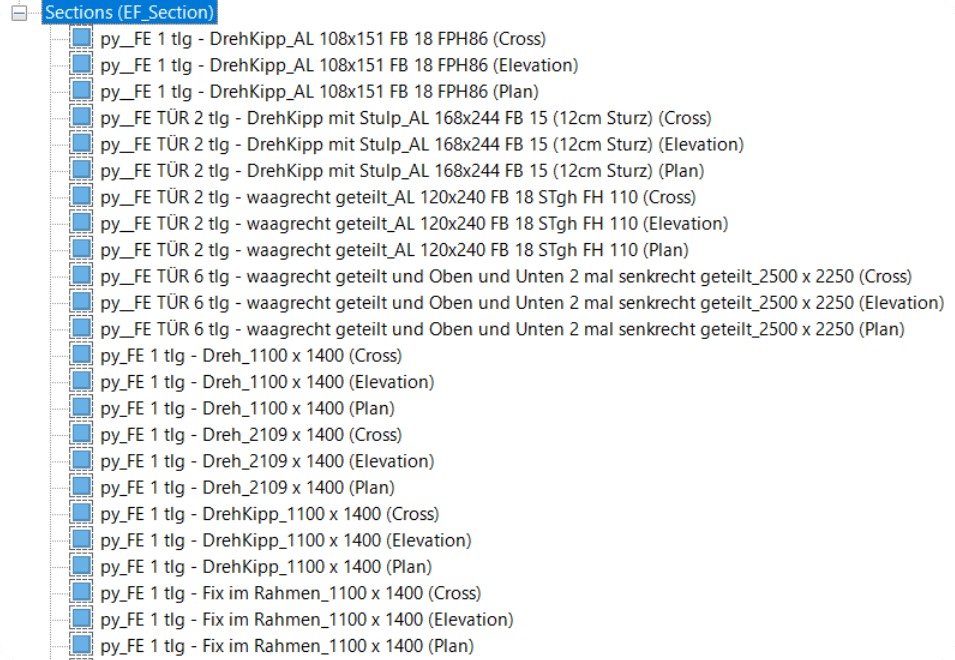
So it will be fairly easy to sort my views. But you might need to use different structure and logic, depending on how you organize your views in Revit!
I will use defaultdict with a nested dictionary for that! Keep in mind that this sorting method will only work if you have 3 sections for each of your windows! Otherwise, you need to ensure you have error handling as well.
Here is my desired output example
#🎯 Desired Dict with Nested Dict Structure
dict_views = {'VIEW_NAME' : {'Plan': None,
'Elevation': None,
'Cross': None}
}👇 And here is the Code Snippet to do that.
#📦 Create defaultdict with nested dict as default value.
from collections import defaultdict
dict_views = defaultdict(dict)
#♻️ Sort Views by Window Types
for view in views_to_place:
try:
view_name = view.Name.replace('py_', '') # Remove _py from view name.
win_name = view_name.split(' (')[0] # Ensure '(' is only used in suffix.
if '(Plan)' in view.Name: dict_views[win_name]['Plan'] = view
elif '(Cross)' in view.Name: dict_views[win_name]['Cross'] = view
elif '(Elevation)' in view.Name: dict_views[win_name]['Elevation'] = view
except: pass💡 Keep in mind that this step will be different because we probably name and organize our views differently.
👀 Also don't forget to preview if you get views correctly before going to the next step!
Here is my code snippet since I used dictionaries for collecting my views.
#👀 Preview Results
for win_name, dict_win_views in dict_views.items():
print(win_name)
for view in dict_win_views.values():
print('- {}'.format(view.Name))
print('-'*50)👀 And here is the Output.
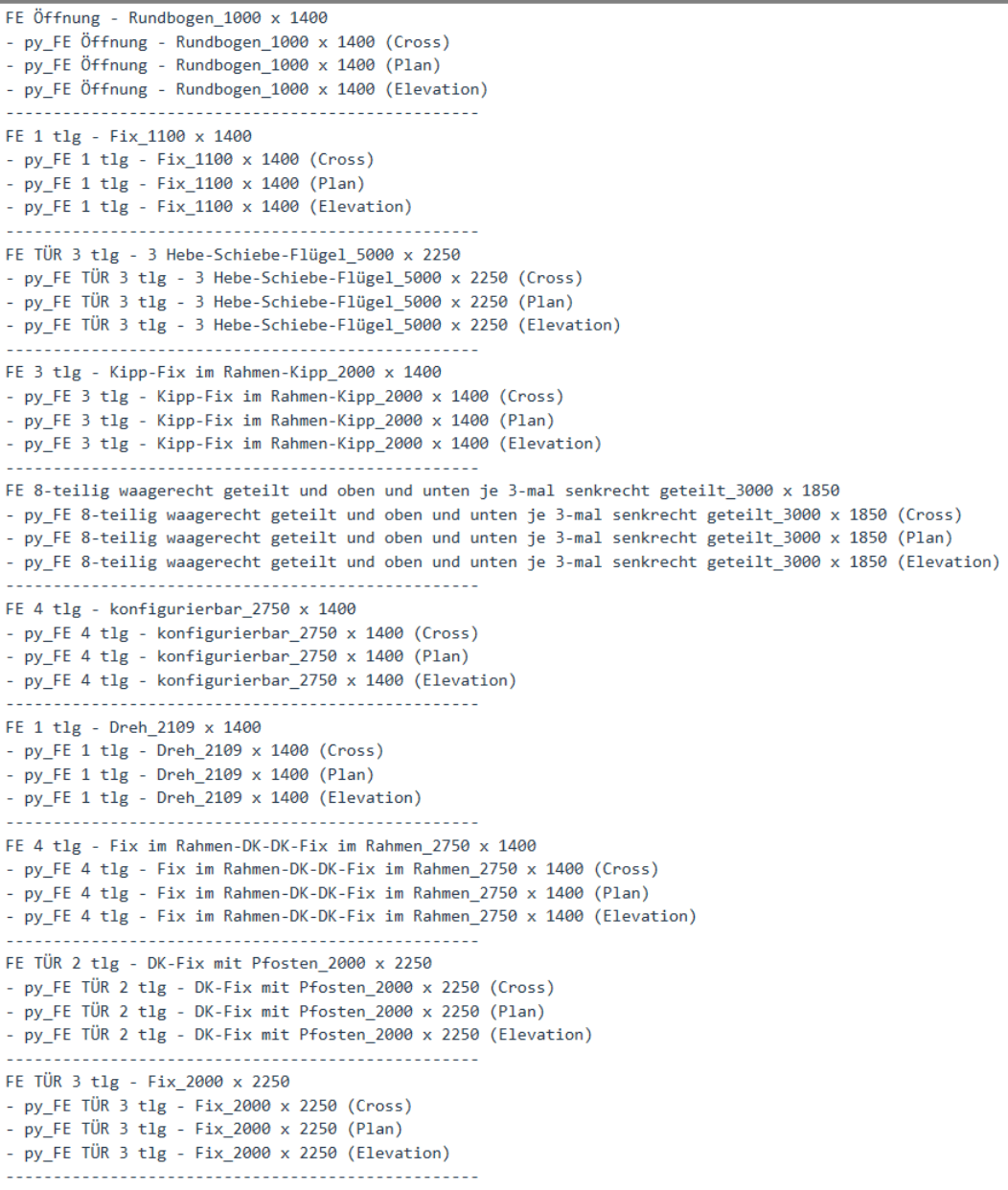
3️⃣ Iterate and Create New Sheet
Next, let's iterate through these views and start creating new ViewSheets.
To create a new ViewSheet we can use its Create Method.
It takes 2 arguments:
Document
TitleBlock.Id
We always have doc variable and the easiest way to get default TitleBlock is by using doc.GetDefaultFamilyTypeId
💡And since we are making a change to the project, we also need to use Transaction.
We need to Start and Commit, and all changes have to be between these statements.
👉 I will also get my plan, elevation and cross-section from the dictionary so we can use it later on.
# Get Default TitleBlock Id
def_title_block_id = doc.GetDefaultFamilyTypeId(ElementId(BuiltInCategory.OST_TitleBlocks))
#🔐 Start Transaction
t = Transaction(doc, 'New Sheet')
t.Start() # 🔓
#🪟 Iterate Through Window Views
for win_name, dict_win_views in dict_views.items():
#🪟 Get Plan/Cross/Elevation Views
plan = dict_win_views['Plan']
elev = dict_win_views['Elevation']
cros = dict_win_views['Cross']
#👀 Preview View Names
# print(plan.Name)
# print(elev.Name)
# print(cros.Name)
# print('-----')
new_sheet = ViewSheet.Create(doc, def_title_block_id)
t.Commit() # 🔒⚠️ Keep in mind that we might not want to produce hundreds of sheets while we are in development stage.
So I will add a counter to my iteration and break out of the loop after I iterated 10 times like this:
#🪟 Iterate Through Window Views
counter = 0 #⏱️ Counter Start
for win_name, dict_win_views in dict_views.items():
#... Create ViewsToSheets Code Here
#TODO 📛️ Temp Counter
counter +=1
if counter> 10:
break #FIXME: Limit to 1 item during Development✅ Now we can test it and see if we create empty sheets for each iteration.
4️⃣ Place Views on Sheets
Now we will place views on sheets.
To place views on sheets we need to create a new instance of a Viewport. You can check its Create method that has the following arguments:
Document
Sheet.Id
View.Id
Location Point (XYZ)
We already have the first 3, so we only need to define Location Points for our views.
To keep it simple, I will hardcode these values for views so they are always placed in the same location.
I've placed views manually on 1 sheet, and then looked in RevitLookup at Viewport.GetBoxCenter values.
And then here is how we can create our Viewports:
#⏺️ Define Location for each plan
pt_plan = XYZ(-0.4, 0.3,0)
pt_elev = XYZ(-0.4,0.75,0)
pt_cros = XYZ(-0.15,0.75,0)
#🖼️ Create ViewPorts on ViewSheet
vp_plan = Viewport.Create(doc, new_sheet.Id, plan.Id, pt_plan)
vp_elev = Viewport.Create(doc, new_sheet.Id, elev.Id, pt_elev)
vp_cros = Viewport.Create(doc, new_sheet.Id, cros.Id, pt_cros)
print('✅ Placed 3 Views on a sheet[{}] for Window: {}'.format(new_sheet.Id, win_name))
👀 Let's test if we get any errors, and in my case I got an error that some sections couldn't be placed on the sheet. And it's because they are already placed! So we need to add some error handling here!
5️⃣ Handle Errors
I will use Viewport.CanAddViewToSheet method to test if view can be placed.
But it need doc, view_sheet_id and view_id arguments, so we need to create our sheet first.
I will use SubTransaction here.
This will allow me to
- Create the sheet
- Check if view can be placed, and Commit SubTransaction if it can.
- Or Rollback and undo creation of the sheet where we can't place any views.
💡 There are easier ways to handle this error, but I wanted to use SubTransaction here!
Here is the Code:
# Start SubTransaction 🔓
# SubTransaction - Will allow creation of new Sections only if we can place Views there.
# Otherwise this step will be skipped for this iteration.
st = SubTransaction(doc)
st.Start()
#📰 Create ViewSheet (If Views aren't placed yet)
new_sheet = ViewSheet.Create(doc, def_title_block_id)
# Check if Views are placed
if Viewport.CanAddViewToSheet(doc, new_sheet.Id, plan.Id) and \
Viewport.CanAddViewToSheet(doc, new_sheet.Id, elev.Id) and \
Viewport.CanAddViewToSheet(doc, new_sheet.Id, cros.Id):
st.Commit()
# Show where views are already placed and skip iteration
else:
st.RollBack()
print('-'*50)
print('The following views are already Placed:')
print('Plan: SheetNumber:{}'.format(plan.get_Parameter(BuiltInParameter.VIEWER_SHEET_NUMBER).AsString()))
print('Elev: SheetNumber:{}'.format(elev.get_Parameter(BuiltInParameter.VIEWER_SHEET_NUMBER).AsString()))
print('Cross: SheetNumber:{}'.format(cros.get_Parameter(BuiltInParameter.VIEWER_SHEET_NUMBER).AsString()))
print('-'*50)
continue # Skip this For-Loop iteration6️⃣ Rename Sheets
The last simple step is to rename our sheets.
It's very simple because we can write new values to SheetNumber and Name properties like this:
#📝 Rename ViewSheet
try:
new_sheet.SheetNumber = 'Window - {}'.format(win_name)
new_sheet.Name = ''
except:
pass
✨Final Code
Lastly, let's put it all together in a single code, so you can easily copy and adjust it to your own needs!
# -*- coding: utf-8 -*-
__title__ = "Tutorial Automate Views on Sheets"
__doc__ = """Date = 12.02.2024
_____________________________________________________________________
Description:
Tutorials on how to Place Views on New Sheets.
_____________________________________________________________________
Author: Erik Frits"""
#⬇️ IMPORTS
#--------------------------------------------------
from Autodesk.Revit.DB import *
#📦 VARIABLES
#--------------------------------------------------
doc = __revit__.ActiveUIDocument.Document #type: Document
# Global
default_title_block_id = doc.GetDefaultFamilyTypeId(ElementId(BuiltInCategory.OST_TitleBlocks))
#🎯 MAIN
#--------------------------------------------------
#📦 Get All Views + Filter
all_views = FilteredElementCollector(doc).OfClass(View).WhereElementIsNotElementType().ToElements()
views_to_place = [view for view in all_views if 'py_' in view.Name]
#♻️ Sort Views for Placing on Sheets
from collections import defaultdict
dict_views = defaultdict(dict)
#🎯 Desired Dict Structure
# dict_views = {'VIEW_NAME' : {'Plan': None,
# 'Elevation': None,
# 'Cross': None},
# }
# 👇 Sort Views to Place
for view in views_to_place:
try:
view_name = view.Name.replace('py_', '') #Remove py_ prefix
win_name = view_name.split(' (')[0]
if '(Plan)' in view.Name: dict_views[win_name]['Plan'] = view
elif '(Cross)' in view.Name: dict_views[win_name]['Cross'] = view
elif '(Elevation)' in view.Name: dict_views[win_name]['Elevation'] = view
except:
pass
#👀 Preview Results
# for win_name, dict_win_views in dict_views.items():
# print(win_name)
# for view in dict_win_views.values():
# print('- {}'.format(view.Name))
# print('-'*50)
#🔏 Transaction to Make changes
t = Transaction(doc, 'Create Window Sheets')
t.Start() #🔓
# 📰 Iterate and Create New Sheet
counter = 0
for win_name, dict_win_views in dict_views.items():
#🪟 Get Plan/Cross/Elevation Views
plan = dict_win_views['Plan']
elev = dict_win_views['Elevation']
cros = dict_win_views['Cross']
# ⚠️ Handle Errors during view placement (SubTransaction)
# SubTransaction Will allow creation of new Section only if we can place them
# Otherwise this step will be rollbacked for this iteration
st = SubTransaction(doc)
st.Start()
#📰 Create new ViewSheet
new_sheet = ViewSheet.Create(doc, default_title_block_id)
#💡 Check if possible to place views
if Viewport.CanAddViewToSheet(doc, new_sheet.Id, plan.Id) and \
Viewport.CanAddViewToSheet(doc, new_sheet.Id, elev.Id) and \
Viewport.CanAddViewToSheet(doc, new_sheet.Id, cros.Id):
st.Commit()
else:
st.RollBack()
print('❌ The following window sections already placed: {}'.format(win_name))
continue
# ⏺️ Define position for placing views
pt_plan = XYZ(-0.4, 0.3, 0)
pt_cros = XYZ(-0.15, 0.75, 0)
pt_elev = XYZ(-0.4, 0.75, 0)
# 🖼️ Place Views on Sheets
vp_plan = Viewport.Create(doc, new_sheet.Id, plan.Id, pt_plan)
vp_cros = Viewport.Create(doc, new_sheet.Id, cros.Id, pt_cros)
vp_elev = Viewport.Create(doc, new_sheet.Id, elev.Id, pt_elev)
print('✅ Created New Sheet for Window: {}'.format(win_name))
# 📝 Rename Sheets
try:
new_sheet.SheetNumber = 'Window - {}'.format(win_name)
new_sheet.Name = ''
except:
pass
# # 📛️ Temp Counter
# counter +=1
# if counter > 10:
# break
t.Commit() #🔒
#--------------------------------------------------
# 🎯 And this will create Hundreds of New Sheets for our Window Sections!